Why an ultrawide monitor changed my laptop workflow
I used to work mostly from a laptop screen. That is fine for a quick mail, a meeting link, or checking something while sitting on the couch. But for real work, especially when I have to switch between my own device and customer laptops, the small screen becomes the bottleneck very quickly.
My current setup is simple: a 34-inch ultrawide monitor, mounted on a monitor arm, with a Logitech MX keyboard and an MX Master mouse. Nothing exotic. No giant gaming cockpit. Just enough screen space and just enough switching comfort to stop fighting the setup.
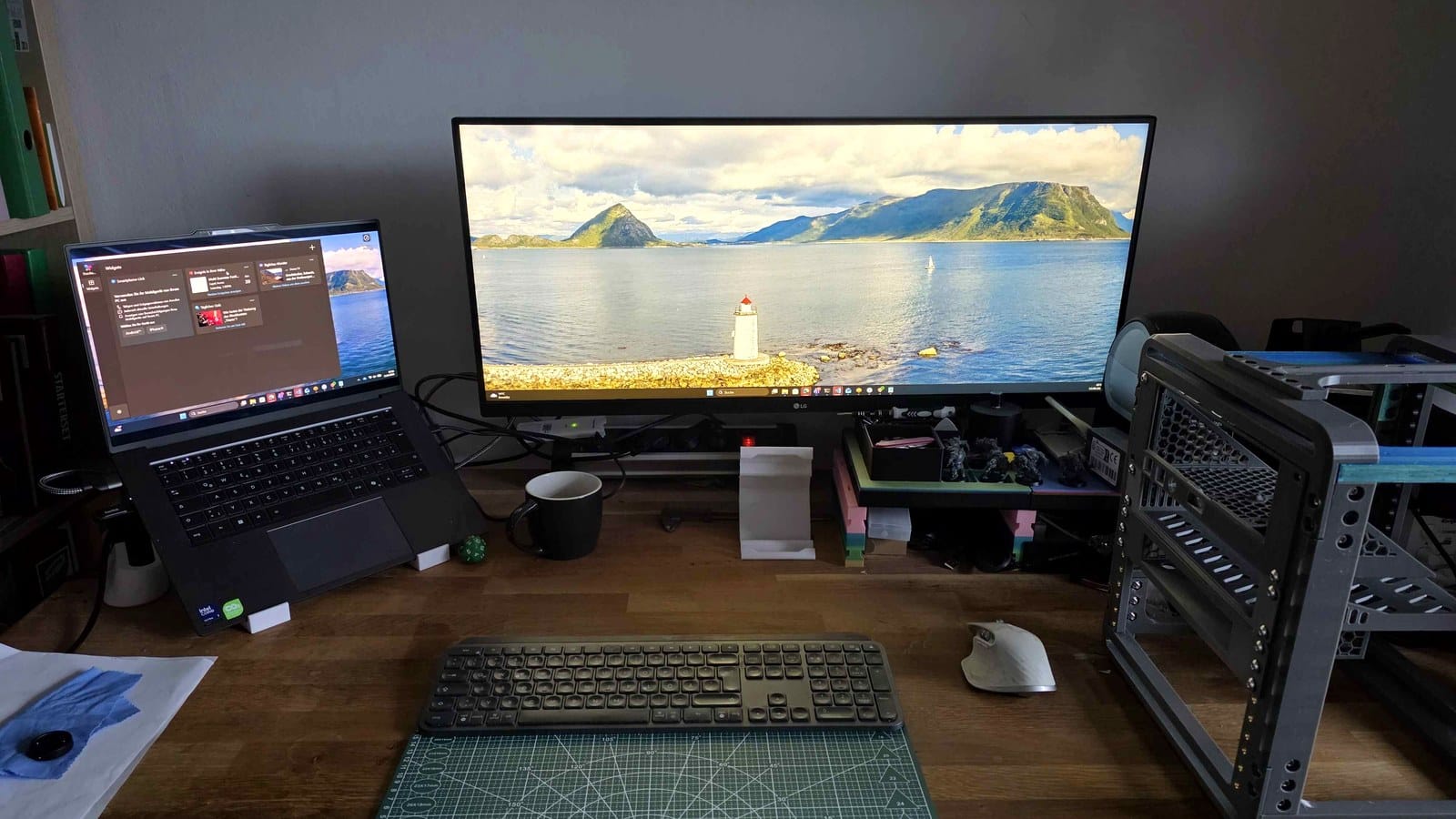
This is the actual desk setup I am talking about: the laptop stays usable, but the ultrawide monitor becomes the main workspace. It is not a showroom desk, and that is the point. Real work happens between customer devices, cables, notes, coffee, and the tools you use every day.
Transparency note: this article contains Amazon affiliate links. If you buy through them, I may earn a commission at no extra cost to you.
The problem with laptop-only work
A laptop screen is portable, but it is cramped. The moment you need more than one window, you start playing window Tetris.
For me that usually means:
- a customer system or remote desktop
- documentation or tickets
- Teams, Slack, mail, or a browser tab with research
- notes for what I am actually doing
On a small laptop display, one of those things is always hidden. You switch windows, lose context, switch back, resize something, and then do the same dance again five minutes later.
That friction sounds small, but it adds up. It is not only about comfort. It changes how you work. If documentation is always buried behind another window, you read it less. If notes are annoying to reach, you take fewer notes. If the meeting window covers your actual work, you constantly compromise.
Why ultrawide works better than two random screens
A second monitor already helps. But an ultrawide monitor feels different because you get one continuous workspace.
With a 21:9 screen I can place my main work window in the center and keep supporting windows on the sides. No bezel in the middle. No weird gap between screens. No "which monitor did that window open on?" moment.
My monitor is the LG Electronics 34WP500-B UltraWide Monitor. It is a 34-inch 21:9 display, and for office and IT work that format hits a sweet spot. Wide enough to replace a dual-screen setup for many tasks, but still clean enough on the desk.
A typical day looks like this:
- left side: ticket, chat, or documentation
- center: customer environment, IDE, browser, or admin console
- right side: notes, mail, or a second reference window
That layout sounds boring. That is exactly why it works.
The underrated part: connecting two laptops
One big advantage of this setup is that I can connect two laptops to the monitor. I often work with dedicated customer laptops, and I do not want to rebuild my whole desk every time I switch context.
The LG 34WP500-B has two HDMI inputs, so I can keep two devices connected and switch the monitor input when needed. This is not the same as a full KVM switch. The monitor does not magically move every USB device between laptops. But combined with the MX keyboard and mouse, it gets very close to the workflow I want.
For me, that is the practical win:
- customer laptop connected to one HDMI input
- private or work laptop connected to the other HDMI input
- same large screen
- same desk position
- same keyboard and mouse family
I can move between machines without turning the desk into a cable mess.
The MX keyboard and mouse make the setup feel complete
The screen is only half the story. If the monitor can switch between laptops but your keyboard and mouse are still tied to one machine, the experience gets annoying.
That is where the Logitech MX Keys S keyboard and the Logitech MX Master 3S mouse fit nicely. Both are built for multi-device work. You can pair them with multiple computers and switch between them instead of unplugging things all the time.
I already wrote a separate review of the MX Master 3S here: Review: Logitech MX Master 3S.
The short version: the MX Master is one of those tools that does not feel exciting in a spec sheet, but you notice it every day. The scroll wheel, the ergonomics, and the device switching make it a very good companion for a multi-laptop desk.
The MX Keys S has the same kind of appeal. Quiet typing, solid layout, and device buttons that are actually useful if you move between machines.
The monitor arm matters more than expected
I mounted the monitor on an ARCTIC Z1 Pro monitor arm. This is one of those upgrades that looks optional until you have it.
A monitor arm gives you three things:
- better height adjustment
- more desk space
- cleaner cable routing
With an ultrawide screen, position matters. If the monitor is too low, you bend your neck. If it is too far away, text becomes uncomfortable. If it sits on a bulky stand, it steals a lot of desk space.
A good arm lets the screen float where it belongs. The desk feels less crowded, and the whole setup looks calmer.
What this setup is good at
This setup is a good fit if you regularly work with several windows and more than one computer.
It is especially useful for IT work, consulting, customer support, development, admin tasks, documentation, and meetings where you need to look at the actual system while keeping notes or chat visible.
It also works well if you do not want two separate monitors. I know some people love dual-screen setups. I get it. But for me, one large clean canvas feels better than two separate panels.
What to watch out for before buying
There are a few things I would check before copying this setup.
First, think about resolution. A 34-inch ultrawide gives you a lot of horizontal space, but you should check whether the resolution matches your expectations for text sharpness. For office work it can be perfectly fine, but people who are very sensitive about pixel density may prefer a higher resolution model.
Second, check your laptop ports. If your laptop only has USB-C and the monitor uses HDMI, you may need an adapter or dock.
Third, be realistic about switching. Two HDMI inputs are useful, but they are not a full KVM solution. If you want one button to switch monitor, keyboard, mouse, webcam, headset, and USB devices together, look into a proper KVM switch or docking setup.
For my workflow, the monitor input switch plus Logitech multi-device switching is enough. It keeps the setup simple.
Best practice for the teaser image
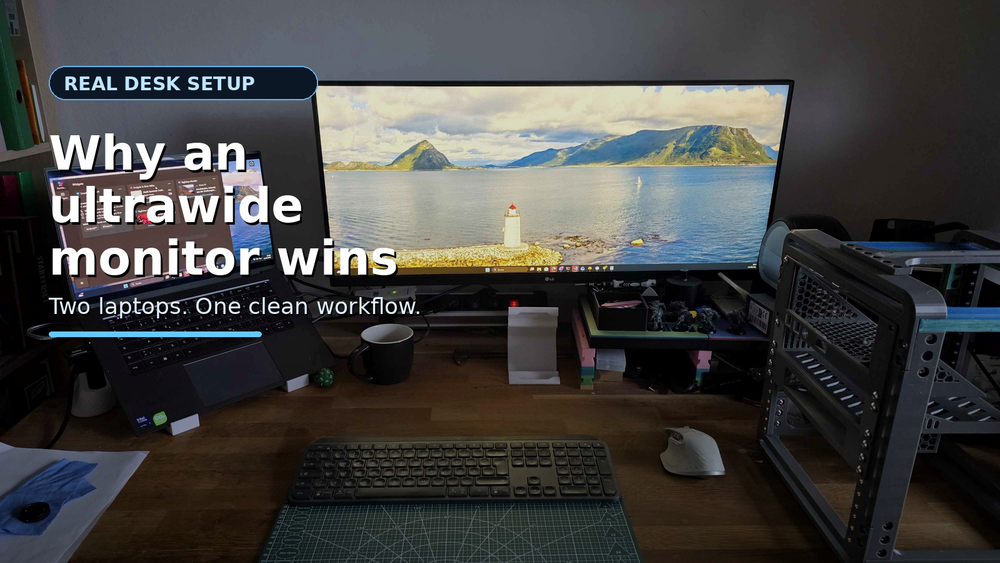
For a blog teaser image, I would not use a generic product collage. It looks like an ad and usually gets ignored. The better option for this article is the real desk photo, cleaned up as a 16:9 hero image with a short readable headline.
A better clickable image should do four things:
- show the actual idea in one second: laptop desk, ultrawide screen, switching between devices
- use a real setup instead of a fake product collage, because it immediately feels more personal
- use very little text, large enough to read on mobile
- keep strong contrast between the headline and the background
The teaser image for this post follows that idea: the actual workspace photo, a dark overlay, and one short message. No tiny product specs. No overloaded Amazon-style graphic. The point is not to explain everything in the image. The point is to make someone click.
My take
A widescreen monitor will not make bad work good. But it removes a very specific kind of daily friction.
For me, the best part is not only the size. It is the combination: ultrawide monitor, two connected laptops, monitor arm, MX keyboard, and MX Master mouse. That turns a small laptop workflow into a proper desk setup without making it complicated.
If you often work with customer laptops or jump between machines, this is one of the cleaner upgrades you can make.