How to set up Microsoft Places properly: buildings, floors, rooms, desks, and privacy
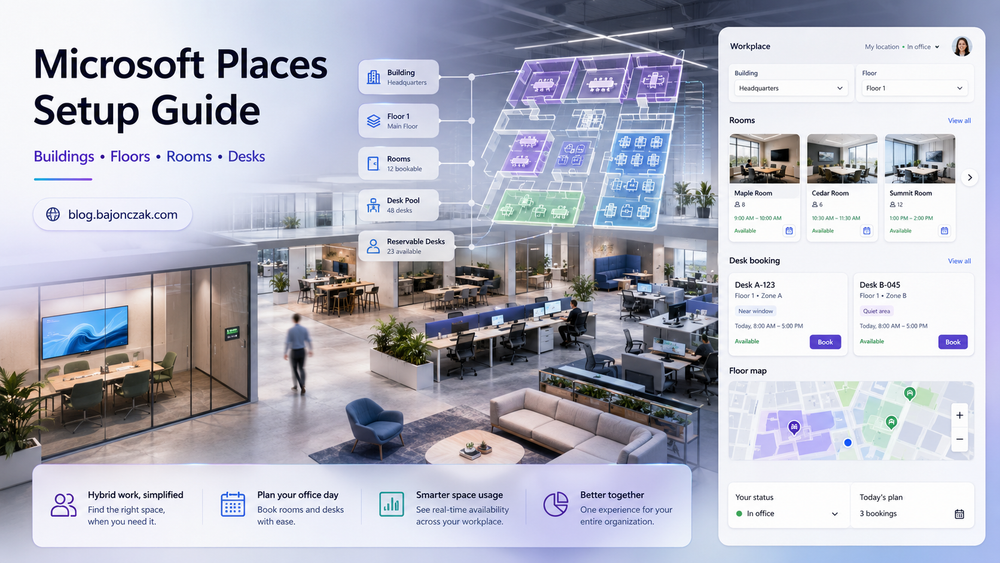
Most Microsoft Places demos show the nice part: a user opens Outlook or Teams, sees a building, picks a desk, and the hybrid day suddenly looks organized. The hard part is the setup behind it. Places only becomes useful when the directory model is clean: building → floor → section → room / workspace / desk.
I also created a detailed Microsoft Places setup checklist for buildings, floors, sections, rooms, desk pools, individual desks, privacy, pilot validation, and scale-out. Use it before touching production. Open the Microsoft Places setup checklist.
This guide walks through a practical setup using one example building, two floors, meeting rooms, a desk pool, and individual desks. I also show how I would import data from a facilities information system — I will call it the FIS export in the scripts — so the configuration is repeatable instead of a one-time admin portal exercise.
The examples below use contoso.com, fictional building data, and PowerShell. Do not paste them blindly into production. Run them first in a pilot tenant or with a tiny mail-enabled pilot group.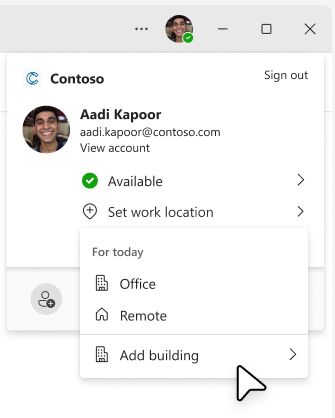
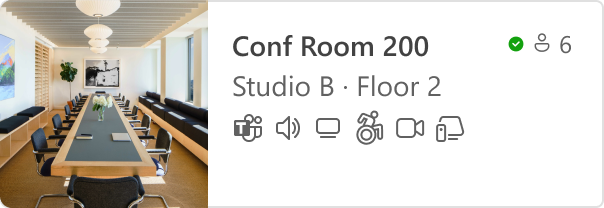
Screenshot source: Microsoft Learn, “Configure buildings and floors”.
Why Microsoft Places is worth the effort
Microsoft Places is not just another booking UI. It connects several Microsoft 365 signals that were previously scattered across Outlook, Teams, Exchange resource mailboxes, room lists, and facilities data.
The main benefits are practical:
- Better office days: users can plan where they will work, see buildings in their work plan, and choose rooms or desks with richer metadata.
- Desk booking without spreadsheet chaos: individual desks can be reservable, drop-in, assigned, or unavailable. Desk pools can still exist for simpler areas.
- Cleaner room discovery: Places Finder uses building/floor hierarchy instead of only flat room lists, so users can navigate by location.
- Facilities analytics: once the data is structured, real estate and facilities teams can reason about utilization instead of guessing.
- Future-ready maps: IMDF floorplans can be correlated to Places objects so desks, rooms, and points of interest show up on maps.
- Governance: admins can enable features gradually by group instead of turning everything on for the whole tenant on day one.
The catch: Places is only as good as the hierarchy and metadata you feed into it.
The target scenario
We will build a fictional building:
- Building: Contoso Campus West
- Address: Friedrichstraße 100, 10117 Berlin, Germany
- Floors: 0 and 1
- Floor 0 sections: Reception, Meeting Zone
- Floor 1 sections: Engineering, Quiet Zone
- Rooms:
CW-0.101 Focus Room— 4 peopleCW-0.102 Project Room— 8 people, Teams Room enabledCW-1.201 Workshop Room— 12 people
- Desk pool:
CW-1 Engineering Desk Pool— capacity 10
- Individual desks:
CW-1-ENG-Desk-01— reservableCW-1-ENG-Desk-02— drop-inCW-1-QZ-Desk-01— assigned to one person
The important design rule is this:
Building
└── Floor
    └── Section
        ├── Room
        ├── Workspace / desk pool
        └── Desk
Rooms can be parented to a floor or a section. Workspaces and individual desks must be parented to a section. That one rule avoids a surprising number of missing-room and missing-desk tickets later.
Step 0: prerequisites and roles
Use PowerShell 7.4 or later. Microsoft’s Places module is not managed through old Windows PowerShell.
# Run in PowerShell 7.4+
$ErrorActionPreference = 'Stop'

Install-Module -Name ExchangeOnlineManagement -Scope CurrentUser -Force
Install-Module -Name MicrosoftTeams -Scope CurrentUser -Force
Install-Module -Name MicrosoftPlaces -Scope CurrentUser -Force

Connect-ExchangeOnline
Connect-MicrosoftTeams
Connect-MicrosoftPlaces
For permissions, avoid using Global Administrator as your normal operating model. Microsoft Places supports built-in Places roles, and Exchange Online also has Places-specific management roles.
For a setup admin, you typically need:
- Places Administrator for full Places onboarding and operations.
- TenantPlacesManagement to manage Places through Exchange/Places PowerShell.
- MailRecipient or Exchange permissions when scripts create or manage resource mailboxes.
Example assignment for a setup user:
# Run as an Exchange admin / organization management admin
New-ManagementRoleAssignment -Role TenantPlacesManagement -User places.setup@contoso.com
For day-two operations, delegate less:
# Building admin for facilities staff
New-ManagementRoleAssignment -Role "PlacesBuildingManagement" -User facilities.berlin@contoso.com
My opinion: separate the project setup identity from the facilities day-to-day identity. Places touches buildings, rooms, mailboxes, desk modes, maps, analytics, and policies. That is too broad for everyone who only needs to maintain desks.
Step 1: create a clean FIS export
Most organizations already have the relevant source data somewhere: a CAFM tool, a facilities information system, Excel exports, floorplan tooling, or a room inventory. The trick is to normalize that data before it reaches Microsoft 365.
Create a CSV called places-fis-import.csv:
Type,BuildingName,CountryOrRegion,State,City,Street,PostalCode,GeoCoordinates,FloorName,FloorSortOrder,SectionName,DisplayName,Mailbox,Capacity,Mode,AssignedPerson,Tags,Wheelchair,AudioDevice,DisplayDevice,VideoDevice,TeamsRoom
Building,Contoso Campus West,DE,BE,Berlin,Friedrichstraße 100,10117,"52.520008;13.404954",,,,,,,,,,,,,,
Floor,Contoso Campus West,,,,,,,0,0,,,,,,,,,,,,
Floor,Contoso Campus West,,,,,,,1,1,,,,,,,,,,,,
Section,Contoso Campus West,,,,,,,0,0,Reception,,,,,,,,,,,
Section,Contoso Campus West,,,,,,,0,0,Meeting Zone,,,,,,,,,,,
Section,Contoso Campus West,,,,,,,1,1,Engineering,,,,,,,,,,,
Section,Contoso Campus West,,,,,,,1,1,Quiet Zone,,,,,,,,,,,
Room,Contoso Campus West,,,,,,,0,0,Meeting Zone,CW-0.101 Focus Room,cw-0-101@contoso.com,4,,,"focus-room;whiteboard",false,,Surface Hub 3,,false
Room,Contoso Campus West,,,,,,,0,0,Meeting Zone,CW-0.102 Project Room,cw-0-102@contoso.com,8,,,"project-room;video",true,Teams Audio,Front Display,Teams Camera,true
Room,Contoso Campus West,,,,,,,1,1,Engineering,CW-1.201 Workshop Room,cw-1-201@contoso.com,12,,,"workshop;hybrid",true,Ceiling Mic,Front Display,PTZ Camera,false
Workspace,Contoso Campus West,,,,,,,1,1,Engineering,CW-1 Engineering Desk Pool,cw-1-deskpool@contoso.com,10,Reservable,,"dock;height-adjustable",true,,,,
Desk,Contoso Campus West,,,,,,,1,1,Engineering,CW-1-ENG-Desk-01,,1,Reservable,,"dock;height-adjustable",true,,USB-C Dock,,
Desk,Contoso Campus West,,,,,,,1,1,Engineering,CW-1-ENG-Desk-02,,1,DropIn,,"dock;near-window",false,,USB-C Dock,,
Desk,Contoso Campus West,,,,,,,1,1,Quiet Zone,CW-1-QZ-Desk-01,,1,Assigned,alex.wilber@contoso.com,"quiet-zone",false,,,,
A few choices here are intentional:
- Building address lives on the building, not each room.
- Floor sort order is explicit so floorplans can later align with Places floor order.
- Sections are modeled as neighborhoods. Do not skip them for desks.
- Tags are semicolon-separated because facilities people can maintain that easily in Excel.
- The import contains both rooms and desks, but the script handles them differently because Exchange-backed rooms/workspaces and Places-native desks do not behave the same way.
Step 2: provision the hierarchy from the FIS export
This script creates the building, floors, sections, rooms, workspace, and desks from the CSV. It is written to be understandable first and clever second.
Save it as 01-import-places-fis.ps1:
#Requires -Version 7.4
param(
    [Parameter(Mandatory)]
    [string]$CsvPath
)

$ErrorActionPreference = 'Stop'

Import-Module MicrosoftPlaces
Import-Module ExchangeOnlineManagement

Connect-MicrosoftPlaces
Connect-ExchangeOnline

$data = Import-Csv -Path $CsvPath

function Get-Single($Items, [string]$Message) {
    if (($Items | Measure-Object).Count -ne 1) {
        throw $Message
    }
    return $Items | Select-Object -First 1
}

function Get-OrCreateBuilding($row) {
    $existing = Get-PlaceV3 -Type Building | Where-Object DisplayName -eq $row.BuildingName
    if ($existing) { return Get-Single $existing "Building '$($row.BuildingName)' is ambiguous." }

    $building = New-Place -Type Building -Name $row.BuildingName
    Set-PlaceV3 -Identity $building.PlaceId `
        -CountryOrRegion $row.CountryOrRegion `
        -State $row.State `
        -City $row.City `
        -Street $row.Street `
        -PostalCode $row.PostalCode `
        -GeoCoordinates $row.GeoCoordinates

    return Get-PlaceV3 -Type Building | Where-Object DisplayName -eq $row.BuildingName | Select-Object -First 1
}

function Get-OrCreateFloor($building, $row) {
    $existing = Get-PlaceV3 -AncestorId $building.PlaceId |
        Where-Object { $_.Type -eq 'Floor' -and $_.DisplayName -eq $row.FloorName }
    if ($existing) { return $existing | Select-Object -First 1 }

    return New-Place -Type Floor -Name $row.FloorName -ParentId $building.PlaceId -SortOrder ([int]$row.FloorSortOrder)
}

function Get-OrCreateSection($floor, $row) {
    $existing = Get-PlaceV3 -AncestorId $floor.PlaceId |
        Where-Object { $_.Type -eq 'Section' -and $_.DisplayName -eq $row.SectionName }
    if ($existing) { return $existing | Select-Object -First 1 }

    return New-Place -Type Section -Name $row.SectionName -ParentId $floor.PlaceId
}

$buildingRows = $data | Where-Object Type -eq 'Building'
foreach ($row in $buildingRows) {
    $null = Get-OrCreateBuilding $row
}

$floorRows = $data | Where-Object Type -eq 'Floor'
foreach ($row in $floorRows) {
    $building = Get-Single (Get-PlaceV3 -Type Building | Where-Object DisplayName -eq $row.BuildingName) "Building '$($row.BuildingName)' not found."
    $null = Get-OrCreateFloor $building $row
}

$sectionRows = $data | Where-Object Type -eq 'Section'
foreach ($row in $sectionRows) {
    $building = Get-Single (Get-PlaceV3 -Type Building | Where-Object DisplayName -eq $row.BuildingName) "Building '$($row.BuildingName)' not found."
    $floor = Get-Single (Get-PlaceV3 -AncestorId $building.PlaceId | Where-Object { $_.Type -eq 'Floor' -and $_.DisplayName -eq $row.FloorName }) "Floor '$($row.FloorName)' not found."
    $null = Get-OrCreateSection $floor $row
}

$spaceRows = $data | Where-Object { $_.Type -in @('Room','Workspace','Desk') }
foreach ($row in $spaceRows) {
    $building = Get-Single (Get-PlaceV3 -Type Building | Where-Object DisplayName -eq $row.BuildingName) "Building '$($row.BuildingName)' not found."
    $floor = Get-Single (Get-PlaceV3 -AncestorId $building.PlaceId | Where-Object { $_.Type -eq 'Floor' -and $_.DisplayName -eq $row.FloorName }) "Floor '$($row.FloorName)' not found."
    $section = Get-Single (Get-PlaceV3 -AncestorId $floor.PlaceId | Where-Object { $_.Type -eq 'Section' -and $_.DisplayName -eq $row.SectionName }) "Section '$($row.SectionName)' not found."

    $tags = @()
    if ($row.Tags) { $tags = $row.Tags -split ';' | Where-Object { $_ } }
    $isWheelchair = [System.Convert]::ToBoolean($row.Wheelchair)

    if ($row.Type -eq 'Room') {
        # If your room mailboxes already exist, replace this New-Place call with Set-PlaceV3 -Identity $row.Mailbox -ParentId $section.PlaceId ...
        $room = New-Place -Type Room -Name $row.DisplayName -ParentId $section.PlaceId -Mailbox $row.Mailbox -Capacity ([int]$row.Capacity)
        Set-PlaceV3 -Identity $row.Mailbox `
            -Capacity ([int]$row.Capacity) `
            -IsWheelChairAccessible $isWheelchair `
            -AudioDeviceName $row.AudioDevice `
            -DisplayDeviceName $row.DisplayDevice `
            -VideoDeviceName $row.VideoDevice `
            -MTREnabled ([System.Convert]::ToBoolean($row.TeamsRoom)) `
            -Tags $tags
    }

    if ($row.Type -eq 'Workspace') {
        $workspace = New-Place -Type Workspace -Name $row.DisplayName -ParentId $section.PlaceId -Mailbox $row.Mailbox -Capacity ([int]$row.Capacity)
        Set-PlaceV3 -Identity $row.Mailbox -Capacity ([int]$row.Capacity) -IsWheelChairAccessible $isWheelchair -Tags $tags
        Set-CalendarProcessing -Identity $row.Mailbox -EnforceCapacity $true
    }

    if ($row.Type -eq 'Desk') {
        if ($row.Mode -eq 'Assigned') {
            $metadata = New-Object 'System.Collections.Generic.Dictionary[String,object]'
            $metadata.Add('AssignedPersonEmailAddress', $row.AssignedPerson)
            $mode = @{ Name = 'Assigned'; Metadata = $metadata }
        } else {
            $mode = @{ Name = $row.Mode }
        }

        $desk = New-Place -Type Desk -Name $row.DisplayName -ParentId $section.PlaceId -Mode $mode
        Set-PlaceV3 -Identity $desk.PlaceId -IsWheelChairAccessible $isWheelchair -DisplayDeviceName $row.DisplayDevice -Tags $tags
    }
}

Get-PlaceV3 -Type Building | Format-Table DisplayName, PlaceId
Run it like this:
.\01-import-places-fis.ps1 -CsvPath .\places-fis-import.csv
If your Exchange room mailboxes already exist, I would not recreate them. Import the hierarchy first, then link existing rooms with Set-PlaceV3 -Identity room@contoso.com -ParentId <section-or-floor-place-id>.
Step 3: create room lists for Outlook compatibility
Places Finder and Room Finder use the same underlying Exchange room/workspace data, but Room Finder still relies on room lists. I still create one room list per building. It keeps older Outlook experiences sane and gives you a fallback while piloting Places Finder.
Connect-ExchangeOnline

$buildingRoomList = 'Contoso Campus West'
$roomListAlias = 'ContosoCampusWestRooms'

New-DistributionGroup -Name $buildingRoomList -Alias $roomListAlias -RoomList

Add-DistributionGroupMember -Identity $roomListAlias -Member cw-0-101@contoso.com
Add-DistributionGroupMember -Identity $roomListAlias -Member cw-0-102@contoso.com
Add-DistributionGroupMember -Identity $roomListAlias -Member cw-1-201@contoso.com
Add-DistributionGroupMember -Identity $roomListAlias -Member cw-1-deskpool@contoso.com
For larger estates, generate this from the same CSV instead of maintaining two sources of truth.
Step 4: enable buildings and pilot Places Finder
By default, buildings are not visible in all Places experiences. Enable buildings first:
Connect-MicrosoftPlaces
Set-PlacesSettings -EnableBuildings 'Default:true'
I would not enable Places Finder for everyone immediately. Start with a mail-enabled security group, validate that users see the right rooms/desks, then expand.
# Example values. Replace with your real group object ID and tenant ID.
$pilotGroupObjectId = '53212aff-b481-31b1-970b-2ca512e6ae53'
$tenantId = 'ef2a9712-4022-4bcb-8a8c-bc2a4256201c'

Set-PlacesSettings -PlacesFinderEnabled "Default:false,OID:$pilotGroupObjectId@$tenantId:true"
Get-PlacesSettings
Later, once the pilot is clean:
Set-PlacesSettings -PlacesFinderEnabled 'Default:true'
Microsoft documents that settings changes can take time to propagate. Build that delay into the rollout plan instead of debugging for hours ten minutes after a change.
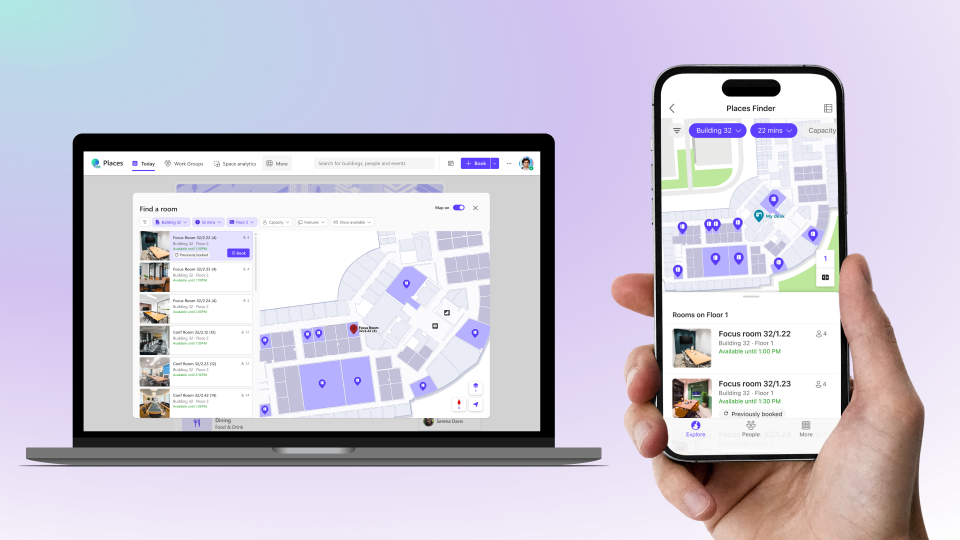
Screenshot source: Microsoft Learn, “Enable Places Finder”.
Step 5: configure desk booking deliberately
Individual desks have modes:
Reservable: users can book the desk in advance or on the spot.DropIn: available for immediate use, not advance reservation.Assigned: permanently linked to a user.Unavailable: not available for booking, for example maintenance.
Example changes after import:
Connect-MicrosoftPlaces

$building = Get-PlaceV3 -Type Building | Where-Object DisplayName -eq 'Contoso Campus West'
$floor = Get-PlaceV3 -AncestorId $building.PlaceId | Where-Object { $_.Type -eq 'Floor' -and $_.DisplayName -eq '1' }
$section = Get-PlaceV3 -AncestorId $floor.PlaceId | Where-Object { $_.Type -eq 'Section' -and $_.DisplayName -eq 'Engineering' }

# Add another reservable desk. A desk mailbox is created automatically if needed.
$newDesk = New-Place -Type Desk -Name 'CW-1-ENG-Desk-03' -ParentId $section.PlaceId -Mode @{ Name = 'Reservable' }
Set-PlaceV3 -Identity $newDesk.PlaceId -Tags @('dock','height-adjustable','near-window') -DisplayDeviceName 'USB-C Dock'

# Change a desk to drop-in mode.
Set-PlaceV3 -Identity $newDesk.PlaceId -Mode @{ Name = 'DropIn' }
Licensing matters here. Microsoft has been moving individual desk booking to a space licensing model. For production planning, check the current Microsoft Places licensing table before promising every desk will be bookable. The admin setup can be correct while the user experience still waits on licensing propagation.
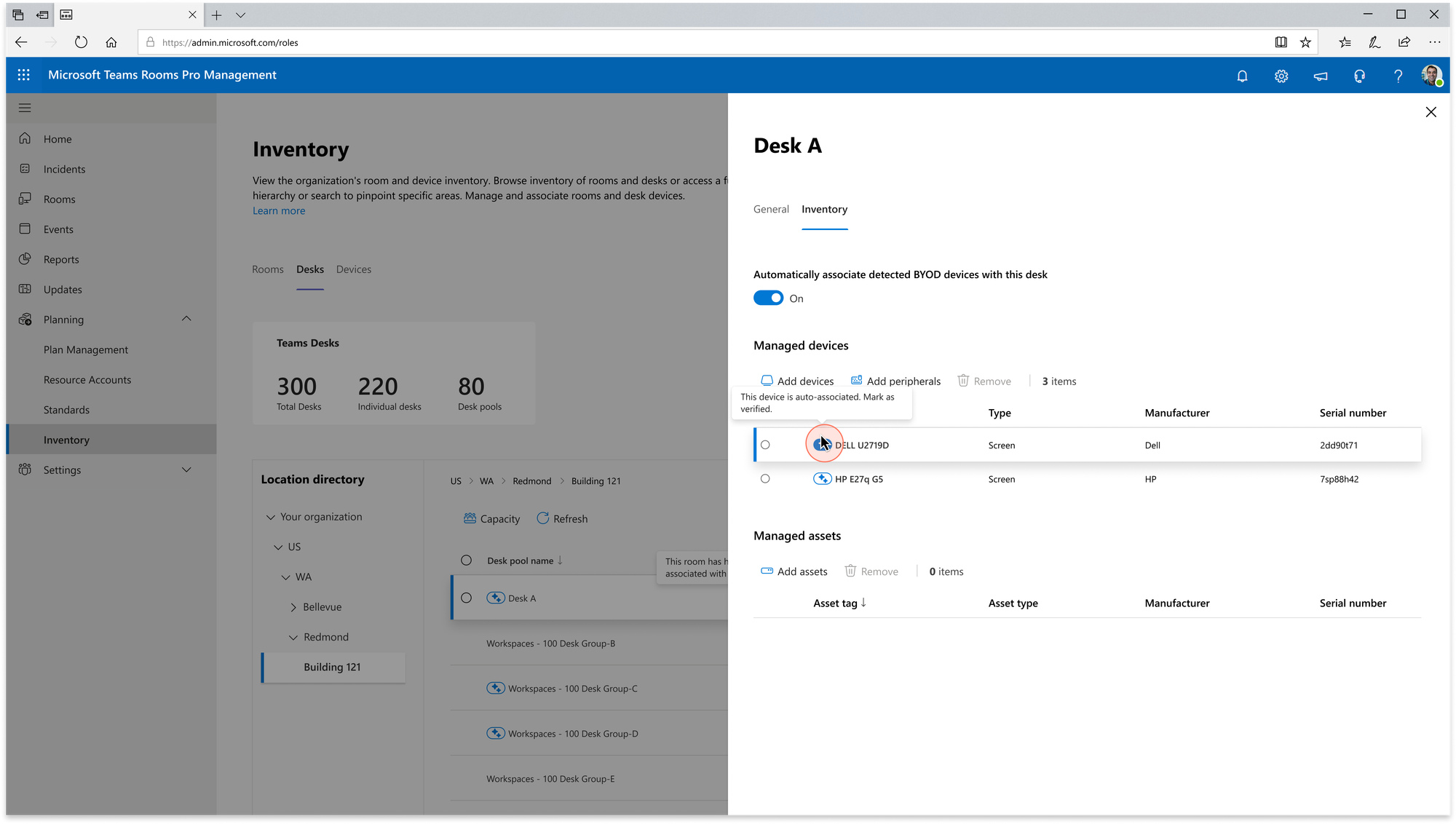
Screenshot source: Microsoft Learn, “Setting up Bookable Desks in Microsoft Teams”.
Step 6: add workplace check-in only after the privacy conversation
Workplace check-in is useful: users can connect to a known Wi-Fi network or desk peripheral and have Teams update their actual work location. But this is exactly where you need a clear privacy story.
The technical setup is straightforward. A Teams admin enables the policy:
Connect-MicrosoftTeams

New-CsTeamsWorkLocationDetectionPolicy -Identity wld-places-pilot -EnableWorkLocationDetection $true
Grant-CsTeamsWorkLocationDetectionPolicy -PolicyName wld-places-pilot -Identity alex.wilber@contoso.com
For Wi-Fi based building detection, configure SSIDs and BSSIDs:
Connect-MicrosoftPlaces

# Corporate Wi-Fi names. Multiple SSIDs are separated with semicolon.
Set-PlacesSettings -Collection Presence -WorkplaceWifiNetworkSSIDList 'Default:Contoso-Corp;Contoso-Secure'
Create wifi-bssid.csv:
BSSID,BuildingName
D0:4D:C6:AA:1B:20,Contoso Campus West
A1:4D:B6:25:1B:40,Contoso Campus West
15:AD:C6:AF:1B:11,Contoso Campus West
Then map and upload:
Add-WifiDevices -Action MapBuildings -InputFilePath .\wifi-bssid.csv
# Review the generated BuildingMapping.csv, correct names if needed, then:
Add-WifiDevices -Action UploadEntries -InputFilePath .\wifi-bssid.csv -BuildingMappingFile .\BuildingMapping.csv
My recommendation: use Ask mode / opt-in language where possible during rollout, communicate clearly, and start with volunteers. The productivity value is real, but so is the trust risk if employees feel surprised.
Privacy: what I would tell the works council
For Germany and the EU, Microsoft Places needs a clear Datenschutz explanation before rollout. The core points I would document internally:
- Purpose limitation: the purpose is office coordination, room/desk booking, and space planning — not attendance control.
- User visibility control: users can choose whether to share work location with coworkers. The signal is organizational, not public.
- No continuous tracking: workplace check-in reacts to configured signals such as Wi-Fi changes or desk peripherals. It is not a GPS movement tracker.
- No historical attendance view from check-in: Microsoft’s workplace check-in documentation explicitly frames it as collaboration support, not monitoring or surveillance.
- User consent / OS permission: Teams needs operating-system location permission for location-based check-in scenarios. Users can opt in/out depending on admin configuration.
- Least privilege admin model: do not hand out Global Admin. Use Places Administrator, Building Administrator, Desk Administrator, and Exchange role assignments as narrowly as possible.
- Data minimization: import only the metadata users need to make decisions — capacity, accessibility, equipment, tags. Do not import sensitive HR attributes into room or desk labels.
- Pilot first: start with one building and a mail-enabled security group. Verify the experience and privacy wording before broad rollout.
- Works council / DPO involvement: in German organizations, involve Betriebsrat and Datenschutzbeauftragte early. Places can be benign, but workplace location always deserves transparency.
A good rollout message is simple:
“Microsoft Places helps colleagues coordinate office days, rooms, and desks. It is not used for time tracking or attendance monitoring. You control whether your work location is visible to coworkers, and workplace check-in can be changed in Teams privacy settings.”
That wording matters more than another architecture diagram.
Step 7: add floorplans with IMDF when the directory is stable
Floorplans are optional, but they make Places much more intuitive. Microsoft Places uses IMDF packages. Each building gets its own correlated IMDF ZIP, usually containing files such as building.geojson, footprint.geojson, level.geojson, and unit.geojson. If you want desks and furniture to appear, include section.geojson and fixture.geojson too.
The high-level process:
Connect-MicrosoftPlaces

$building = Get-PlaceV3 -Type Building | Where-Object DisplayName -eq 'Contoso Campus West'

# Export Places directory entries for correlation.
Get-PlaceV3 -AncestorId $building.PlaceId | Export-Csv .\contoso-campus-west-places.csv -NoTypeInformation

# Generate mapfeatures.csv from the IMDF ZIP.
Import-MapCorrelations -MapFilePath .\contoso-campus-west-imdf.zip

# After manually correlating PlaceId/Name/Type in mapfeatures.csv:
Import-MapCorrelations -MapFilePath .\contoso-campus-west-imdf.zip -CorrelationsFilePath .\mapfeatures.csv

# Upload the correlated package.
New-Map -BuildingId $building.PlaceId -FilePath .\imdf_correlated.zip
New maps can take time to appear. Do not troubleshoot the Outlook UI two minutes after upload.
Screenshot source: Microsoft Learn, “Configure floorplans”.
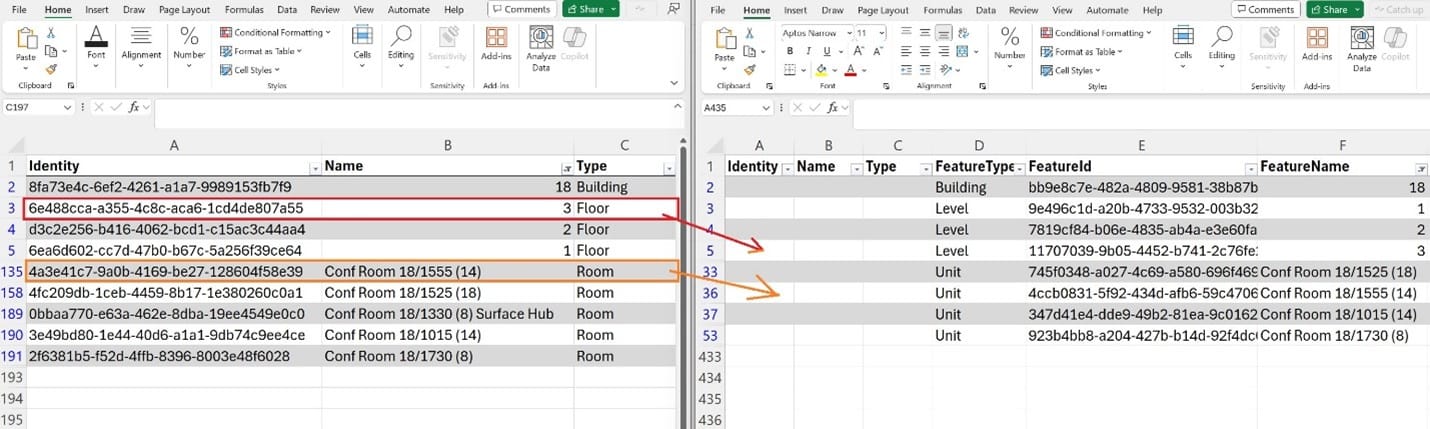
Screenshot source: Microsoft Learn, “Configure floorplans”.
Step 8: verify the setup
I use a boring checklist because it catches most mistakes.
Connect-MicrosoftPlaces

# Buildings visible in directory
Get-PlaceV3 -Type Building | Format-Table DisplayName, PlaceId, City, CountryOrRegion

# Full tree below the example building
$building = Get-PlaceV3 -Type Building | Where-Object DisplayName -eq 'Contoso Campus West'
Get-PlaceV3 -AncestorId $building.PlaceId |
    Sort-Object Type, DisplayName |
    Format-Table Type, DisplayName, ParentId, PlaceId

# Rooms/workspaces should have capacity and parent information
Get-PlaceV3 -Type Room | Where-Object DisplayName -like 'CW-*' |
    Format-Table DisplayName, Capacity, ParentId, IsWheelChairAccessible

# Desk modes should be intentional
Get-PlaceV3 -Type Desk | Where-Object DisplayName -like 'CW-*' |
    Format-Table DisplayName, Mode, ParentId, Mailbox
Then test as a pilot user:
- Open Teams or Outlook calendar.
- Set work location to the building.
- Create a meeting and open Places Finder.
- Filter by capacity, accessibility, and tags.
- Book one room.
- Book one individual desk.
- Try the desk pool.
- Confirm old Room Finder still sees the building room list where needed.
- Wait up to 24 hours before declaring room/workspace association broken.
Common mistakes
Skipping sections. Desks and workspaces need sections. Create them even if the building only has one “General” section per floor.
Using room-level address data after hierarchy setup. Once rooms/workspaces are parented, manage location at building level. Otherwise your data will look inconsistent across experiences.
Turning on Places Finder too early. If the hierarchy is incomplete, users will conclude the product is broken. Pilot with a small mail-enabled group.
Treating FIS data as clean. Facilities exports often contain “1”, “01”, “First Floor”, and “Floor 1” for the same floor. Normalize before import.
Forgetting propagation time. Some changes are immediate, some take hours, and room/workspace associations can take up to a day.
Not planning licensing for desks. A desk can exist in Places but still not behave as expected for booking until licensing is assigned and propagated.
My rollout plan
For a real tenant I would do it in this order:
- Pick one representative building.
- Clean the FIS export and agree naming conventions.
- Import buildings, floors, sections, rooms, one desk pool, and a handful of individual desks.
- Keep Room Finder compatibility through building room lists.
- Enable buildings tenant-wide only after validating naming.
- Enable Places Finder for a pilot mail-enabled group.
- Add desk booking and policies.
- Have Datenschutz/Betriebsrat review the workplace check-in wording.
- Enable workplace check-in for volunteers.
- Add IMDF maps once the directory is stable.
- Roll building by building, not tenant by tenant.
Microsoft Places is one of those products where the UI looks simple because the model underneath is strict. Respect the model, automate the import, and be transparent about privacy. Then it becomes genuinely useful instead of another half-configured Microsoft 365 feature.
Source links
- Microsoft Places overview: https://learn.microsoft.com/en-us/microsoft-365/places/places-overview
- Configure buildings and floors: https://learn.microsoft.com/en-us/microsoft-365/places/get-started/quick-setup-buildings-floors
- Configure desk booking: https://learn.microsoft.com/en-us/microsoft-365/places/configure-desk-booking
- Enable Places Finder: https://learn.microsoft.com/en-us/microsoft-365/places/enable-places-finder
- Configure floorplans: https://learn.microsoft.com/en-us/microsoft-365/places/configure-maps-in-places
- Configure workplace check-in: https://learn.microsoft.com/en-us/microsoft-365/places/configure-auto-detect-work-location
- Microsoft Places PowerShell:
New-Place,Set-PlaceV3,Set-PlacesSettings