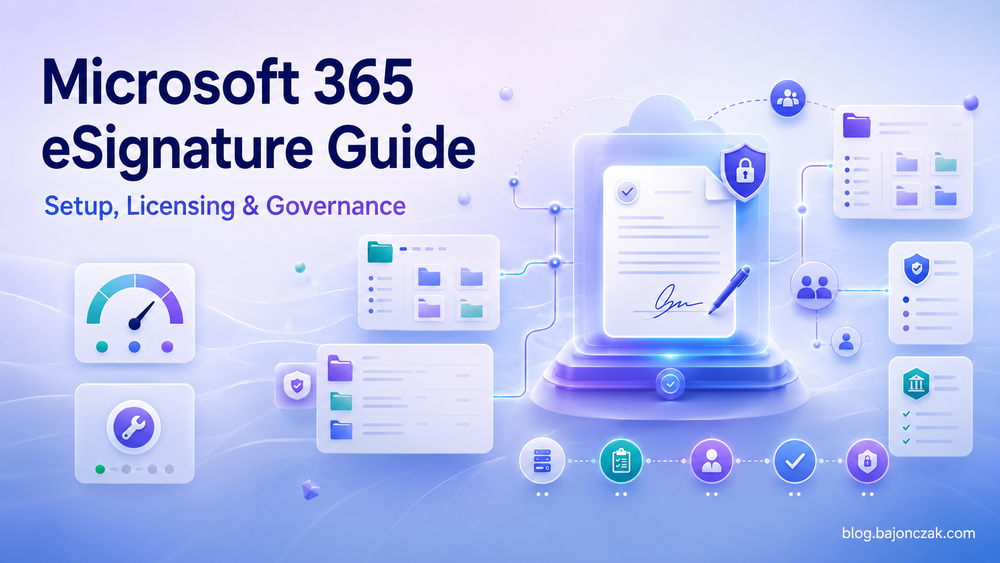
Microsoft 365 eSignature Guide: Setup, Licensing, Governance and Troubleshooting
Microsoft 365 eSignature sounds like a small feature.
Open a document, request a signature, wait for the signed PDF to come back into SharePoint. Done.
In a real tenant it is not quite that small. The signature button touches billing, SharePoint sharing, external guests, document permissions, legal acceptance, audit logs, sensitivity labels, retention and support. That does not make the feature bad. It just means I would not roll it out like a random Office feature.
The switch is the easy part. The mess is around the switch.
This guide is how I would look at Microsoft 365 eSignature as an IT admin: what it is, where it fits, what has to be ready before enabling it, and where I would still choose Adobe Sign, DocuSign or a more mature signing platform.
What Microsoft 365 eSignature actually is
Microsoft 365 eSignature is Microsoft's native way to request electronic signatures from documents that already live in Microsoft 365, mainly SharePoint and Word.
The simple flow looks like this:
- A user starts a signature request from a supported document.
- The document is prepared for signing.
- Recipients receive a signing request.
- They sign the PDF version.
- The completed PDF and audit trail land back close to the original Microsoft 365 content.
That is the useful part: the document does not have to start its life in a separate contract platform. If your team already works in SharePoint, the signing process can stay near the place where the document was created, reviewed and stored.
But that also means eSignature inherits a lot of your Microsoft 365 reality. If SharePoint permissions are messy, eSignature will not magically clean them up. If external sharing is not understood, signing requests will expose that. If nobody owns retention and audit requirements, the button just gives users a faster way to create governance questions.
So I would describe it like this:
Microsoft 365 eSignature is a practical signing workflow for simple Microsoft 365 documents. It is not a full contract lifecycle management platform.
That distinction matters.
Where it is a good fit
I like Microsoft 365 eSignature for boring, normal internal workflows where the document already belongs in SharePoint.
Good candidates:
- simple approvals that need a signature instead of just an email reply
- HR forms with a clear owner and a limited audience
- internal policy confirmations
- smaller supplier or customer documents where the process is not complex
- teams that already use SharePoint libraries as the system of record
- departments that send a low number of signature requests and do not need advanced routing
The main benefit is not that Microsoft invented signing. They did not. The benefit is that simple signing becomes closer to the document workspace users already know.
That can reduce tool sprawl. It can also reduce the habit of downloading a document, uploading it somewhere else, sending it around, then storing the final copy manually.
And yes, in 2026 people still print, sign, scan and mail PDFs back. I see that as a process smell. Sometimes even a security smell. If the document is already in Microsoft 365, a controlled digital signing flow is usually cleaner than another copy travelling through inboxes and scanners.
Where I would be careful
I would not treat Microsoft 365 eSignature as a default replacement for Adobe Acrobat Sign, DocuSign or a dedicated contract workflow platform.
I would be careful when you need:
- complex multi-step routing
- reusable contract templates with heavy automation
- advanced signer identity options
- deep CRM, ERP or CLM integration
- high-volume agreement workflows
- detailed business reporting across all agreements
- strict legal workflows that your legal team already mapped to an existing provider
For those cases, use the right signing platform. Microsoft 365 eSignature is attractive because it is close to SharePoint. That is also its boundary.
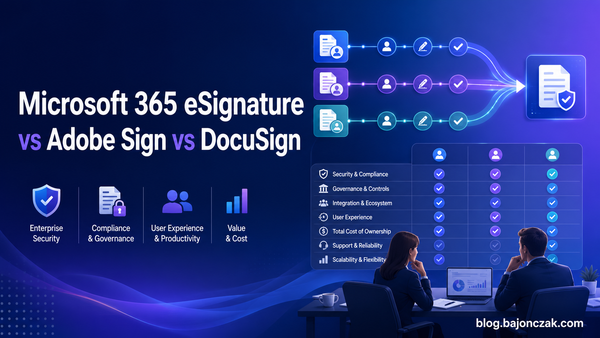
I keep the vendor decision separate in the comparison article:
Microsoft 365 eSignature vs Adobe Sign vs DocuSign
Before enabling it: the admin checklist
I would not start in the Microsoft 365 admin center.
I would start with these questions:
- Which teams are allowed to use eSignature first?
- Which SharePoint sites are in scope?
- Are external signers allowed?
- Which document types are allowed?
- Do sensitivity labels or encryption break the signing flow?
- Who pays for requests?
- Who supports users when requests fail?
- Who decides whether a document is legally acceptable for this flow?
- Where do signed PDFs live afterwards?
- Which audit or retention requirements apply?
If those questions are not answered, enabling the feature tenant-wide is just a faster way to create tickets.
Tenant availability
First check whether Microsoft 365 eSignature is available in your tenant and region. Microsoft has changed availability and licensing details over time, so I would always verify the current Microsoft documentation before promising anything to the business.
Do not rely on an old blog post, including this one, for exact availability or pricing.
Admin role
Make sure the person configuring it has the right admin permissions. Depending on the setup, this can involve Microsoft 365 admin settings, SharePoint configuration, billing configuration and external sharing policies.
In practice, this is not a one-admin decision. You usually want at least:
- Microsoft 365 admin
- SharePoint admin
- identity/security admin input
- legal or compliance input
- billing owner
- pilot business owner
That sounds heavy for a signing button, but it avoids the classic pattern where IT enables something and then spends three weeks explaining why it behaves exactly like the tenant was configured.
Legal fit
I am not a lawyer, and I would not let IT decide the legal validity of a signing process alone.
Before rollout, legal or compliance should define which document types are allowed. Some documents may be fine with a simple electronic signature. Others may require a stronger identity proof, a specific provider, or a process that Microsoft 365 eSignature is not meant to cover.
My practical rule:
Start with low-risk, high-friction documents. Do not start with your most sensitive contract process.
How I would enable it in a tenant
The exact screens may change, but the rollout logic should stay boring.
1. Pick a pilot scope
Do not start tenant-wide.
Choose one or two SharePoint sites with a clear owner and a real use case. For example, an HR operations site or a procurement pilot library.
The pilot should be small enough to support manually, but real enough to expose problems.
Avoid a fake demo site where everything works because permissions are clean and nobody uses it.
2. Check SharePoint sharing
External signing usually depends on external access and sharing behavior. If your SharePoint external sharing policies are locked down, requests may fail. If they are too open, you may have a different problem.
Check:
- site-level sharing settings
- tenant-level SharePoint sharing settings
- guest access expectations
- whether recipients need to authenticate
- whether conditional access affects external users
- whether links expire as expected
This is where many “eSignature problems” are really SharePoint problems with a nicer error message.
3. Check labels and encryption
Sensitivity labels are useful, but they can also break workflows if nobody tested the combination.
Before rollout, test documents with the labels your users actually use:
- normal internal documents
- confidential documents
- encrypted documents
- documents with external sharing restrictions
- PDFs created from Word documents
Do not assume the happy path covers your real libraries.
4. Connect billing
Microsoft 365 eSignature uses a pay-as-you-go model through Azure billing. That is convenient for occasional usage, but it also means usage can grow quietly once the button is visible.
Before enabling it, define:
- which Azure subscription is used
- who owns the cost center
- how usage will be reviewed
- whether departments need chargeback or showback
- whether there is a monthly threshold for review
The hidden cost is not the first test request. The hidden cost is every department discovering that signing is now one click away.
5. Enable the feature
Once scope, sharing, labels and billing are clear, enable eSignature in the Microsoft 365 admin experience according to the current Microsoft documentation.
I would document the exact settings you changed and store that next to the pilot decision. Future-you will thank you when someone asks why one site can send requests and another cannot.
6. Run a real end-to-end test
Run at least these tests before telling users it is available:
- internal sender to internal signer
- internal sender to external signer
- document from the pilot SharePoint library
- labelled document
- rejected or expired request, if supported in your scenario
- signed PDF access for the sender
- signed PDF access for someone who should not see it
- audit trail review
The last two are important. A signing flow that completes is not automatically a secure signing flow.
7. Prepare support
Users will not ask “is external collaboration disabled on this SharePoint site?”
They will say:
The signature button is gone.
or:
The customer cannot sign.
So prepare a small support runbook before rollout. Include the obvious checks: feature enabled, supported file type, user permissions, external sharing, labels, conditional access, guest restrictions and billing state.
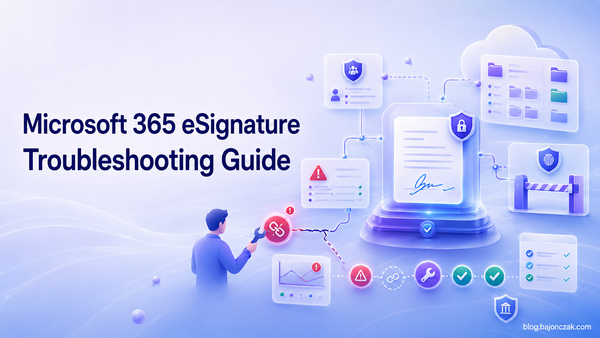
For deeper issue handling, keep the troubleshooting article open:
Microsoft 365 eSignature troubleshooting guide
SharePoint governance baseline
Microsoft 365 eSignature looks like a signing feature. Admins should treat it as SharePoint governance.
The signing flow depends on the boring stuff:
- site permissions
- sharing settings
- guest access
- sensitivity labels
- encryption
- conditional access
- document ownership
- retention
- audit logs
If those pieces are messy, eSignature will expose the mess very quickly.
Do not start tenant-wide
I would start with named pilot sites, not a global announcement.
A good pilot site has:
- a business owner
- a known document type
- clear permissions
- a small group of senders
- external sharing rules that are already understood
- someone who agrees to provide feedback
A bad pilot is “everyone can try it and we will see what happens”. That is not a pilot. That is production with worse monitoring.
Decide who can send requests
Not everyone who can edit a document should automatically send signature requests for the company.
At minimum, decide:
- which users or groups can initiate requests
- whether requests are limited to specific libraries
- whether templates or naming rules are needed
- whether signed PDFs need a defined storage location
- whether users are allowed to send requests to private email addresses
The permission model should match the process, not just the technical possibility.
External signing needs real rules
External signers are where convenience and risk meet.
Define rules for:
- allowed recipient domains, if needed
- guest access behavior
- whether signers must authenticate
- how long access should last
- who can resend requests
- what happens when the wrong recipient is used
The worst version is a document that was carefully controlled inside SharePoint and then casually shared during signing.
Plan where signed PDFs live
The signed PDF should not become an orphan.
Decide whether completed documents stay next to the original, move into a records library, inherit metadata, or trigger a follow-up process.
If the signed copy is the legally relevant artifact, it needs ownership and retention. Otherwise, you only moved the mess from email attachments into a document library.
Use audit logs
For rollout, I would check audit events during the pilot. Not because I expect drama, but because it tells you whether the process is understandable.
Look for:
- who sends requests
- which sites are used
- whether external recipients are common
- whether failed attempts cluster around one policy
- whether users try to sign documents from the wrong libraries
Audit data is not just for incidents. It is also feedback on your rollout design.
Licensing, pricing and limitations
Microsoft 365 eSignature is not licensed like a normal per-user Microsoft 365 add-on. It uses Azure pay-as-you-go billing.
That can be a good fit when signing volume is occasional. It can also be annoying when usage grows and nobody owns the cost.
I would treat pricing as a rollout input, not a footnote.
Pay-as-you-go changes the conversation
With per-user licensing, the cost conversation usually happens before rollout. With pay-as-you-go, the cost conversation can happen after people already use the feature.
That is why I would define a simple usage review from day one:
- check request volume after the pilot
- review the Azure cost line monthly
- watch for departments using it as a general approval tool
- decide when volume justifies a different provider or process
For exact prices and limits, check Microsoft's current documentation. Pricing, regions and included capabilities can change.
Limits that matter in practice
The limits I would check before rollout:
- supported file types
- number of recipients
- request size limits
- regional availability
- external recipient behavior
- trial availability
- audit and retention behavior
- integration limits compared with Adobe Sign or DocuSign
Do not discover those limits with the CEO's contract.
The hidden costs
The hidden costs are usually not technical.
They are:
- support tickets when users pick the wrong site
- confusion around external signers
- legal review for document types that were never approved
- cleanup of signed PDFs in the wrong libraries
- billing questions after usage grows
- governance work that should have happened before launch
That is why I prefer a controlled rollout, even for a feature that looks simple.
Minimal rollout checklist
This is the checklist I would actually use before enabling Microsoft 365 eSignature broadly.
Decision checklist
- Legal/compliance approved the document types for this signing method.
- A pilot business owner is named.
- Pilot SharePoint sites are selected.
- Sender groups are defined.
- External signer rules are documented.
- Billing owner and Azure subscription are clear.
- Support owner is named.
Technical checklist
- Tenant availability checked.
- Admin roles confirmed.
- SharePoint tenant sharing checked.
- Site-level sharing checked.
- Guest access behavior tested.
- Sensitivity labels tested.
- Encrypted documents tested, if relevant.
- Signed PDF storage behavior confirmed.
- Audit events reviewed.
Rollout checklist
- Pilot users informed.
- Support runbook prepared.
- Known limitations documented.
- Comparison against Adobe Sign / DocuSign done for high-volume workflows.
- Usage and cost review scheduled.
- Internal links and guidance point to one main guide, not seven scattered posts.
Quick troubleshooting map
Most eSignature issues are not mysterious. They are usually SharePoint, permissions, external sharing, labels, file format, conditional access or billing showing up as an eSignature issue.
Start here:
| Symptom | First checks |
|---|---|
| Signature option is missing | Feature enabled, supported file type, user permissions, site scope |
| User cannot create a request | Sender permission, billing state, admin rollout scope |
| External signer cannot sign | SharePoint sharing, guest access, conditional access, recipient address |
| Signed document cannot be accessed | Library permissions, link behavior, final PDF location |
| Request fails for labelled document | Sensitivity label, encryption, external sharing restrictions |
| Costs look wrong | Azure billing, request volume, departments using it outside the pilot |
For the full triage flow, use the separate troubleshooting article:
Common Microsoft 365 eSignature Problems and Troubleshooting
My take
I like Microsoft 365 eSignature for what it is: a practical signing option for simple documents that already belong in Microsoft 365.
I do not like it as a blanket answer to every signing process.
If a team just needs a controlled way to sign SharePoint documents without printing, scanning or pushing every PDF into another platform, it can be a good fit. If the process needs advanced routing, heavy templates, contract lifecycle management or strict identity options, I would still look at Adobe Sign, DocuSign or a dedicated platform.
The important part is not the button. The important part is the operating model around the button.
Start small. Pick the right sites. Test external signing. Watch labels and permissions. Review costs. Keep legal in the loop.
That is boring advice, but it is exactly the kind of boring that keeps a signing rollout from turning into another tenant cleanup project.